
Every song in Songcraft has a place for its recordings, so the melody you hummed into your phone stays with the lyrics and chords it goes with. You can record straight into the song, upload voice memos and other audio, and pick one recording (or a Spotify, SoundCloud, or YouTube link) as the song's demo. Recordings are free on every plan, and your co-writers can hear them too.
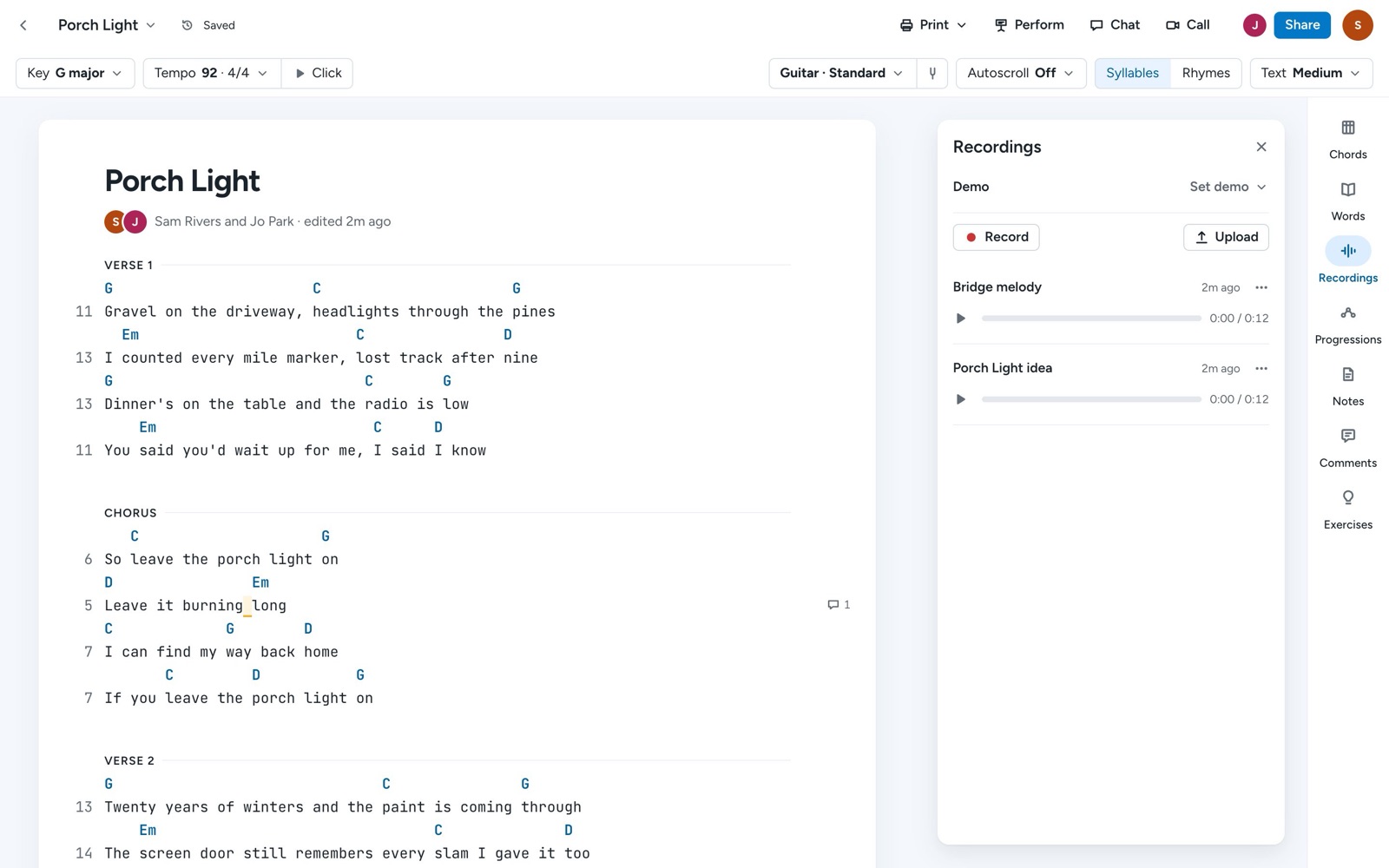
Record an idea
- Open the song and click Recordings on the right side. On a phone, tap Recordings at the bottom.
- Click Record. The first time, your browser asks to use your microphone.
- Play or sing, and click Stop when you're done.
- Give the recording a name, so you can find it later.
Recordings use your microphone as it is, without the voice processing browsers apply to calls, so a guitar sounds the way it does in the room. They're saved in a format that plays on iPhone, Android, Mac, and PC.
Upload a voice memo
In Recordings, click Upload and choose an audio file, like a voice memo from your phone. To bring in many voice memos at once, or to start new songs from them, use Import songs in your library (see Import your songs).
Play, rename, or download a recording
Each recording has its own player. Click play to listen, drag along the bar to jump ahead, and click the name to rename it. The ⋯ menu beside a recording has Set as demo, Download, and Delete.
Set a demo
The demo is the one recording that represents the song, and your library shows which songs have one.
- At the top of Recordings, click Set demo.
- Choose one of Your recordings, Upload audio…, or Paste a link… for a Spotify, SoundCloud, or YouTube link.
To change it later, click Change, or choose Remove demo.
Tips
With the Recordings tool open, press ⌥R (Alt+R on Windows) to start and stop recording without reaching for the mouse. If your browser can't record, you can still upload audio. Recordings in a shared collection can be played by everyone in it, and they're included when you export all of your songs with Pro.