
Some of the most useful parts of Songcraft are small enough to miss. Here they are in one place. Everything on this page is free except version history, which is part of Pro.
Turn on dark mode
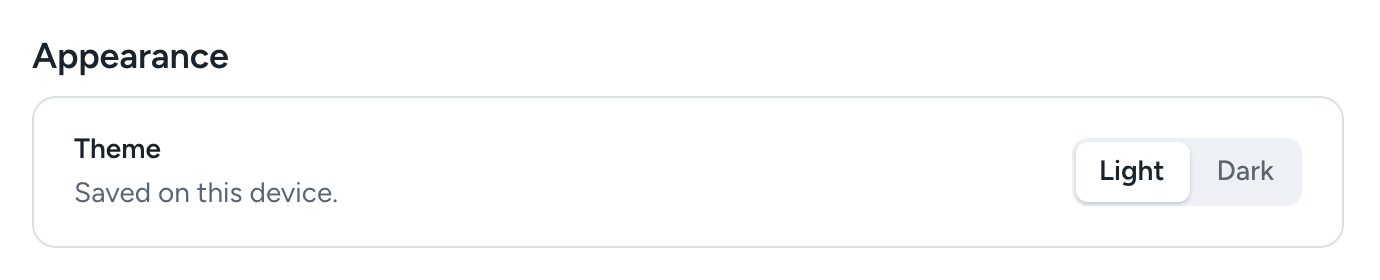
Click your name at the bottom of your library's sidebar and choose Settings. Under Appearance, set Theme to Dark. The setting is saved on each device, so you can use dark mode on your phone and light mode on your computer. Printed charts always stay light.
Get back a deleted song
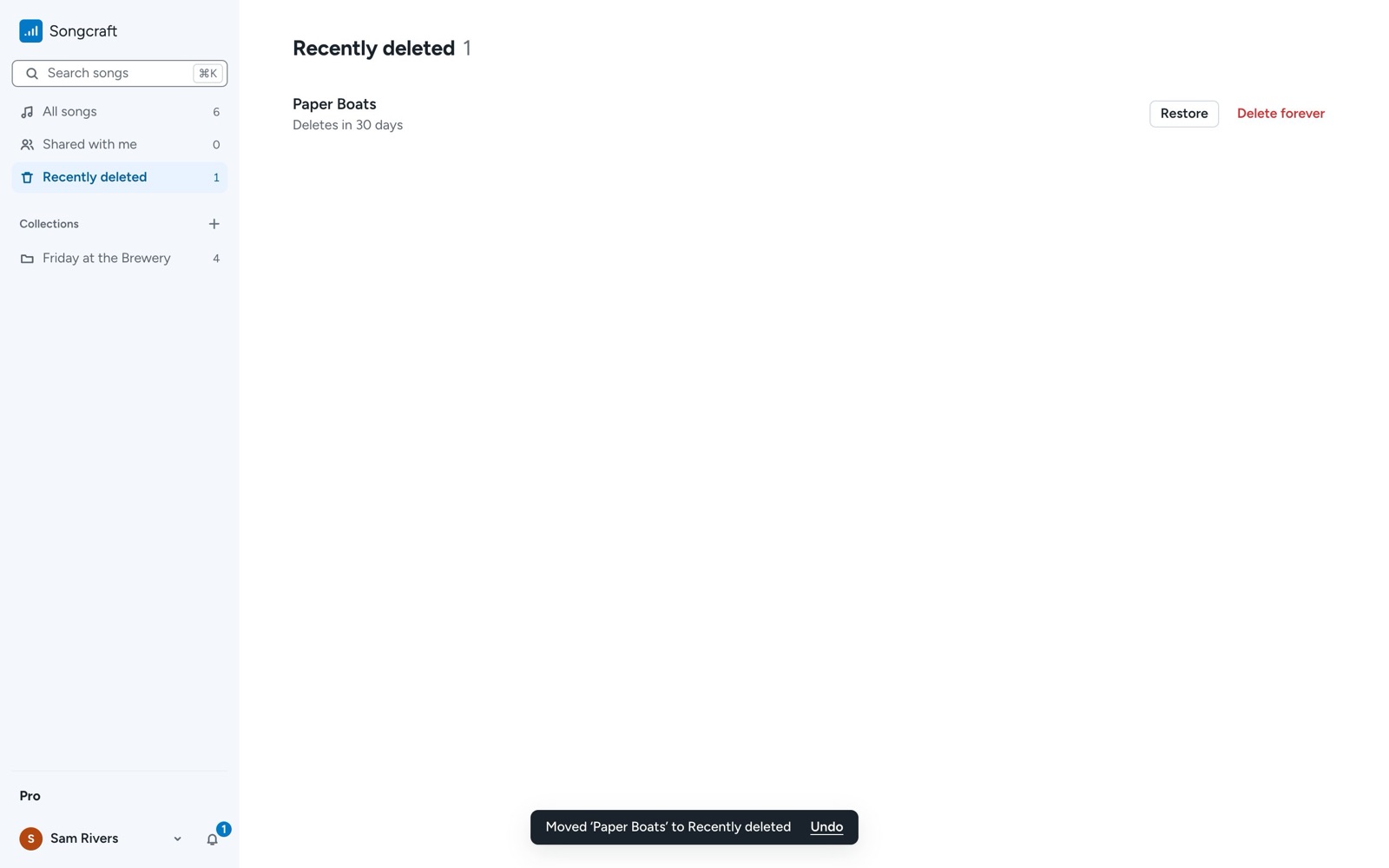
Deleted songs go to Recently deleted in your library's sidebar and stay there for 30 days. Click Restore to put a song back where it was, or Delete forever if you're sure. Right after you delete a song, you can also click Undo in the message at the bottom of the screen.
Add a section from the +
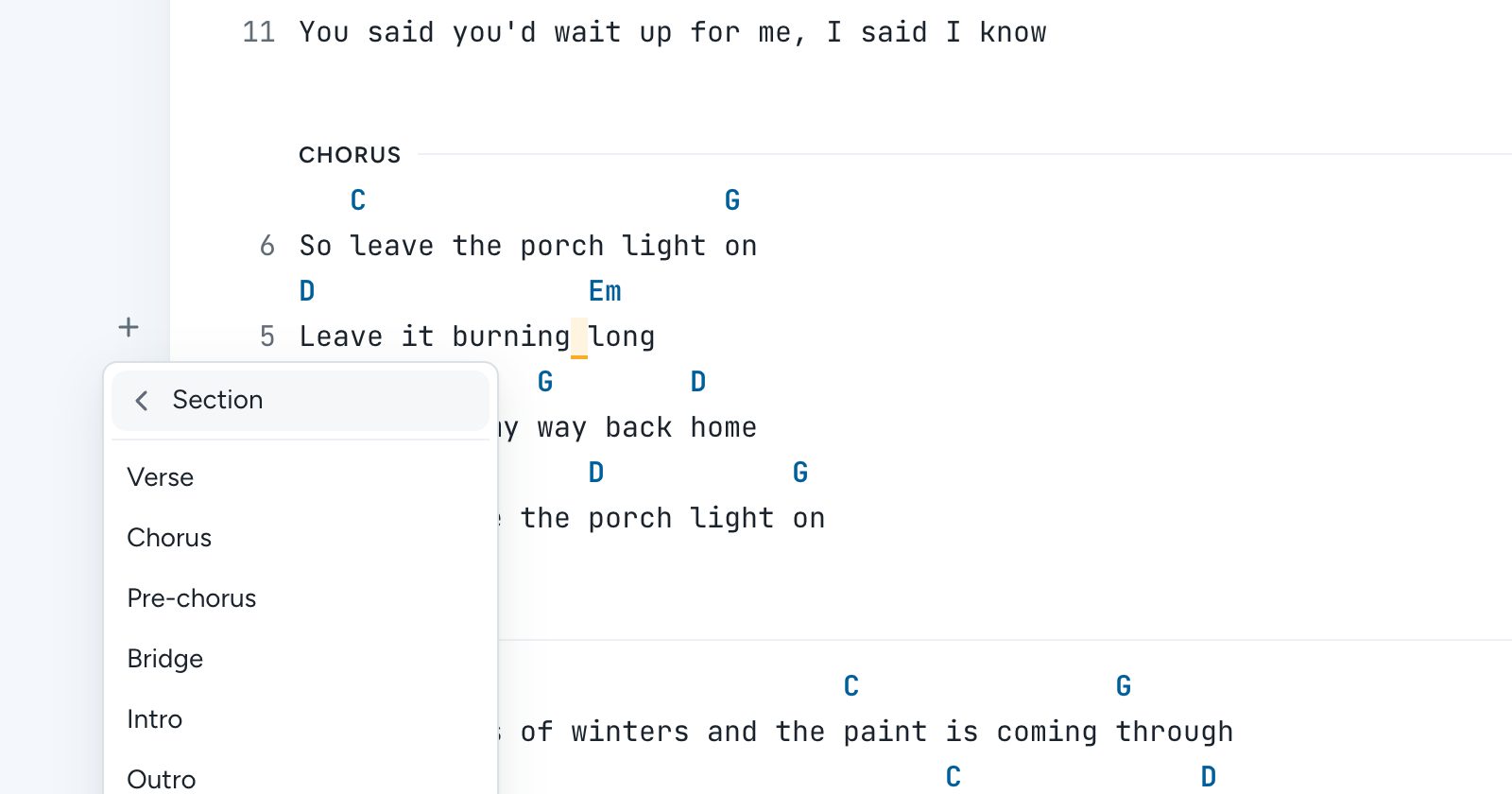
When your cursor is on a line, a + appears beside it. Click it and choose Section, then Verse, Chorus, Pre-chorus, Bridge, Intro, Outro, or Custom…, and a new section starts after that line. It's the quickest way to add a third verse or another chorus. You can also type a section name in square brackets, like [Bridge], on its own line.
Set a capo
Click Key in the bar above your song and use Capo (the song needs a key first). The capo is saved with the song, shows in the bar (for example, "Capo 2"), and prints at the top of your chart.
Use 6/8, 9/8, 12/8, and other time signatures
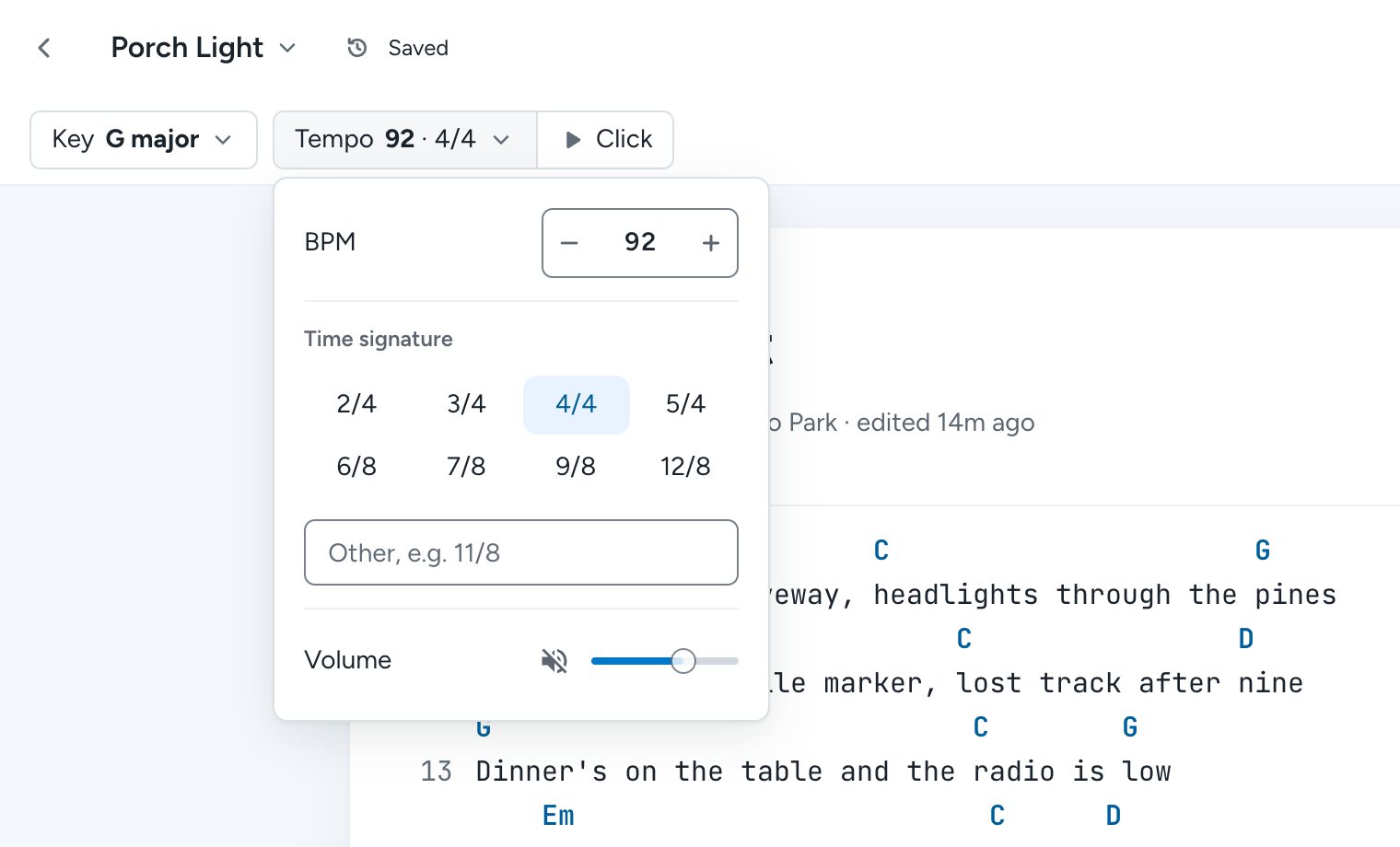
Click Tempo in the bar above your song to set the BPM and pick a Time signature, from 2/4 to 12/8. For anything else, type it in Other, e.g. 11/8. Click Click to start the metronome, which follows the time signature, so 6/8 feels like 6/8.
Write chords your way
Songcraft reads chords however you write them, including C-7, Cm7, CΔ7, and Cmaj7, so you don't have to change how you spell them. If a chord doesn't come up in the suggestions as you type, keep typing, and Songcraft recognizes it when you're done.
Transpose a whole song
Click Key and use Transpose to move every chord in the song up or down by half steps. It changes the song for everyone on it, so it's handy when a singer needs a different key. To change the key for one show only, set it in the set instead (see Perform and sets).
Autoscroll while you play
Click Autoscroll in the bar above your song, choose a Speed from 1× to 5×, and click Start. On a phone, tap the autoscroll icon in the music bar.
Go back to an earlier version (Pro)
Click Saved at the top of a song, or choose Version history from the menu under the song's title, to see earlier versions of the song and restore one.
Tips
If something doesn't work the way you expect, or there's something you'd like Songcraft to do, click your name at the bottom of the sidebar, choose Chat with support, and let us know. For the basics, start with Getting started with Songcraft.