
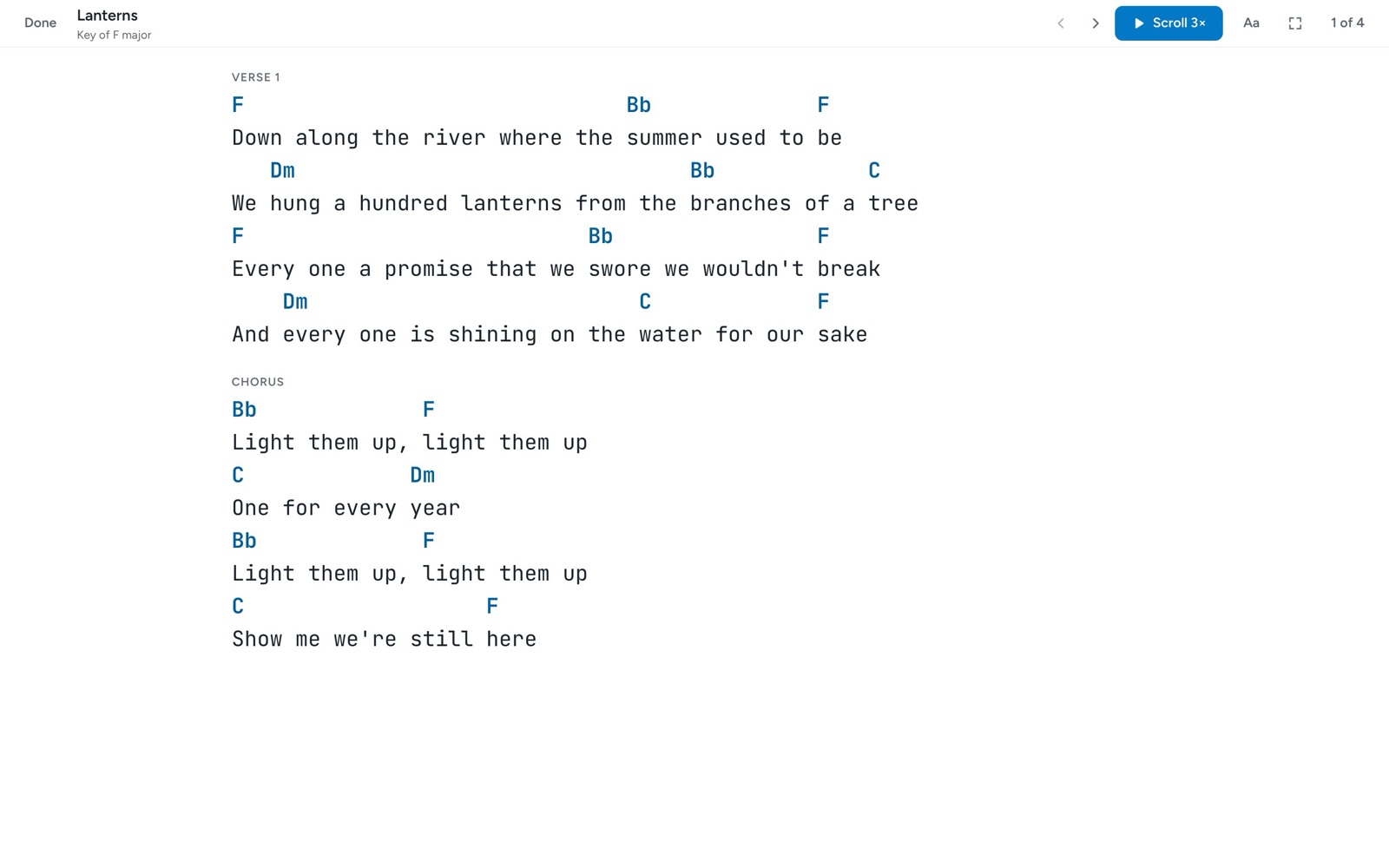
Perform is a view of your song made for playing it: large type, nothing else on the screen, and autoscroll that keeps up with you. Any collection can be a set, so you can step through a whole show from one song to the next, with a key, capo, and note for each song that apply only to that set. Sets keep working without an internet connection. Perform is part of Pro, and when you share a set with your band, your Pro covers everyone in it.
Perform one song
- Open the song.
- In the top bar, click Perform. On a phone, tap the ⋯ menu and choose Perform.
- Click Scroll to start autoscroll, and click it again to pause.
- Click Done to go back to the song.
Change the text size, chords, and scroll speed
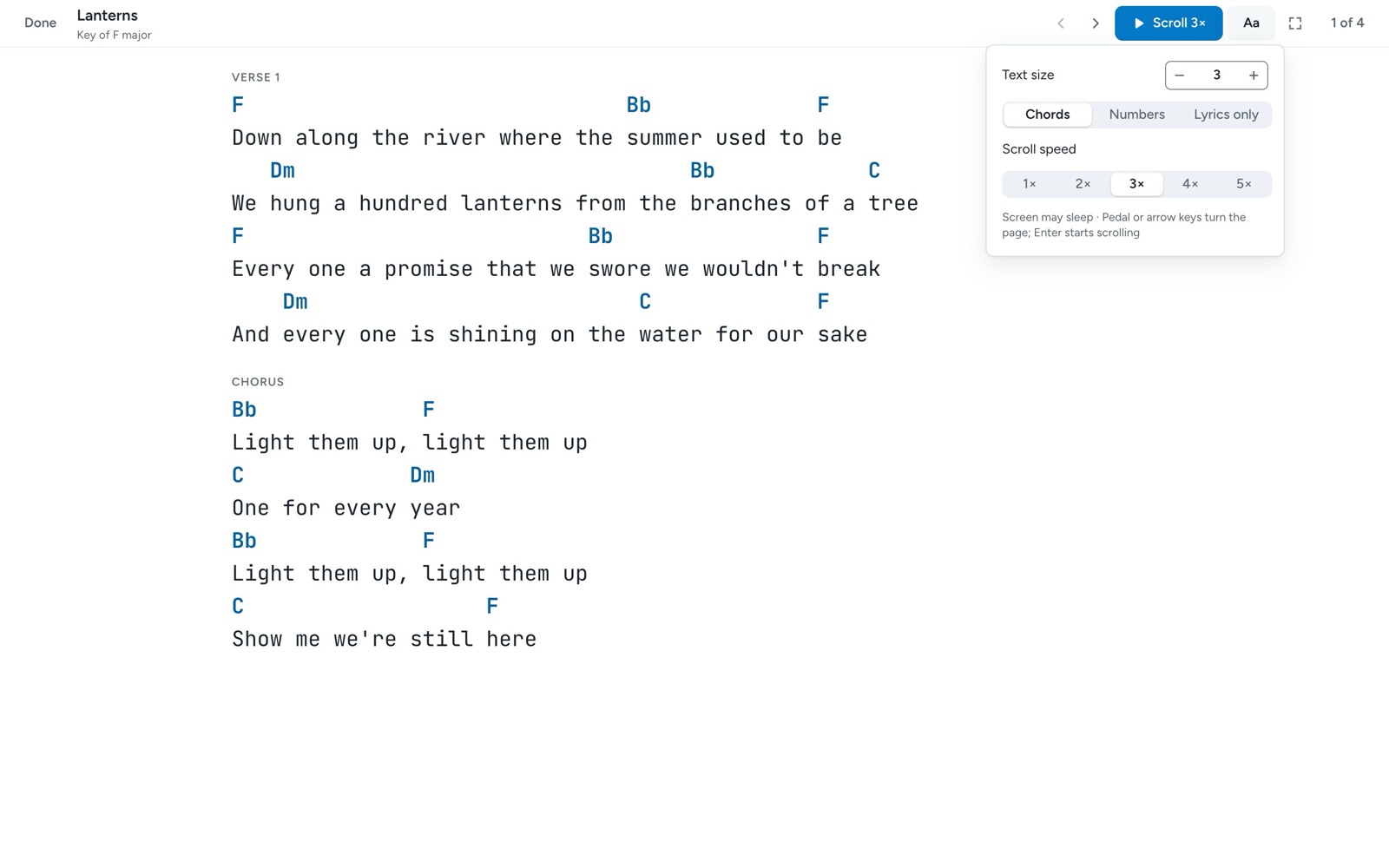
Click Aa in Perform to open the display settings. Use Text size to make the song larger or smaller, and choose between Chords, Numbers, and Lyrics only for what you see. Numbers shows the chords as Nashville numbers, which works once the song has a key. Scroll speed sets autoscroll anywhere from 1× to 5×.
Build a set from a collection
A set is a collection played in order. If you don't have a collection yet, click + next to Collections in your library's sidebar, name it, and press Enter. Then add songs from each song's ⋯ menu with Add to collection….
- Open the collection.
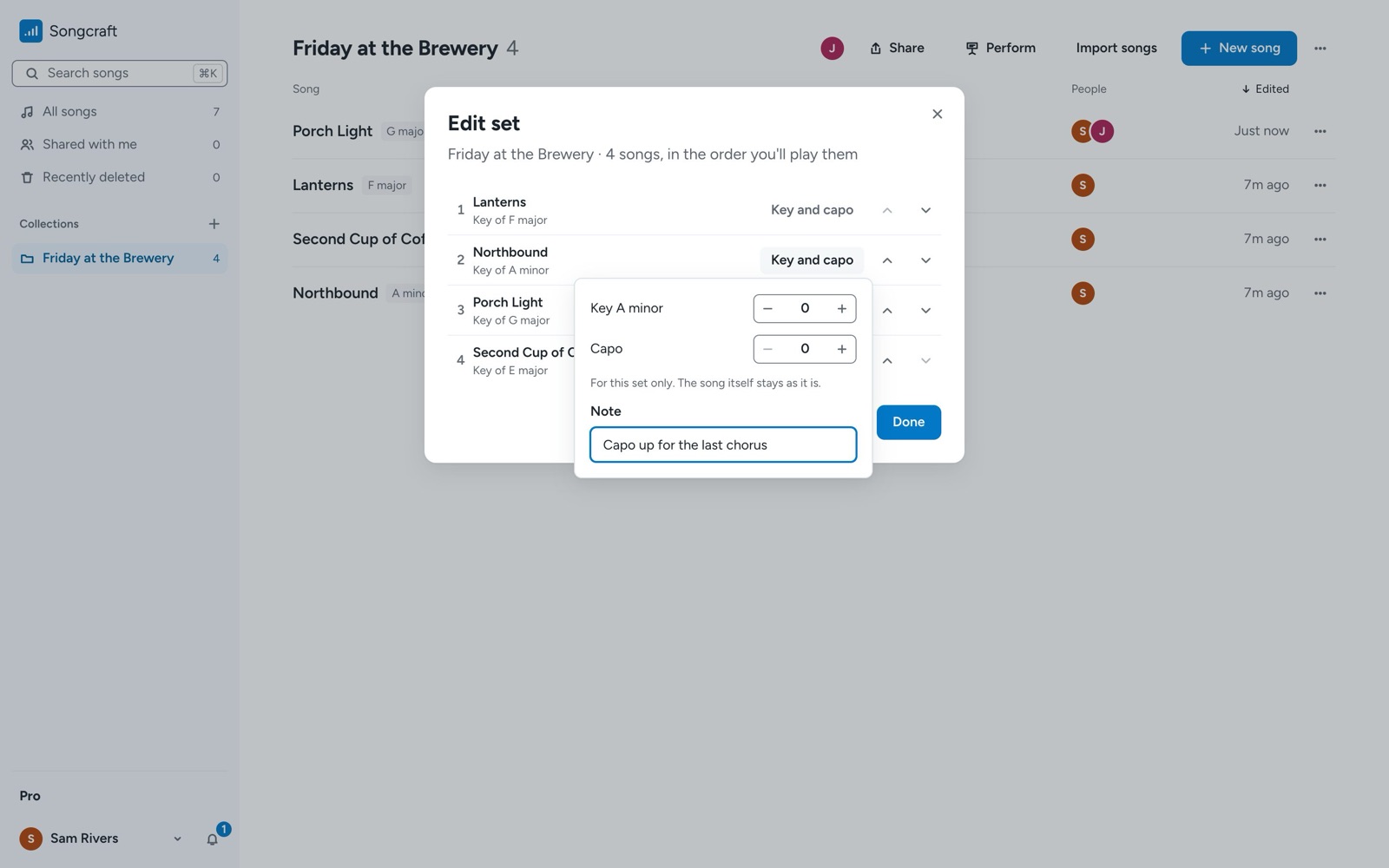
- Click ⋯ at the right of the header and choose Edit set.
- Use the arrows on each row to put the songs in the order you'll play them.
- Optional: click Key and capo on a song to change its key or capo, or add a Note (like "Capo up for the last chorus"). These apply to this set only, and the song itself stays as it is.
- Click Done.
Play the set
- Open the collection and click Perform in the header, or choose Perform this set from the ⋯ menu.
- Use Next song and Previous song, a page-turner pedal, or your arrow keys to move through the set.
- Click the song count (like 1 of 4) to see the whole set and jump to any song.
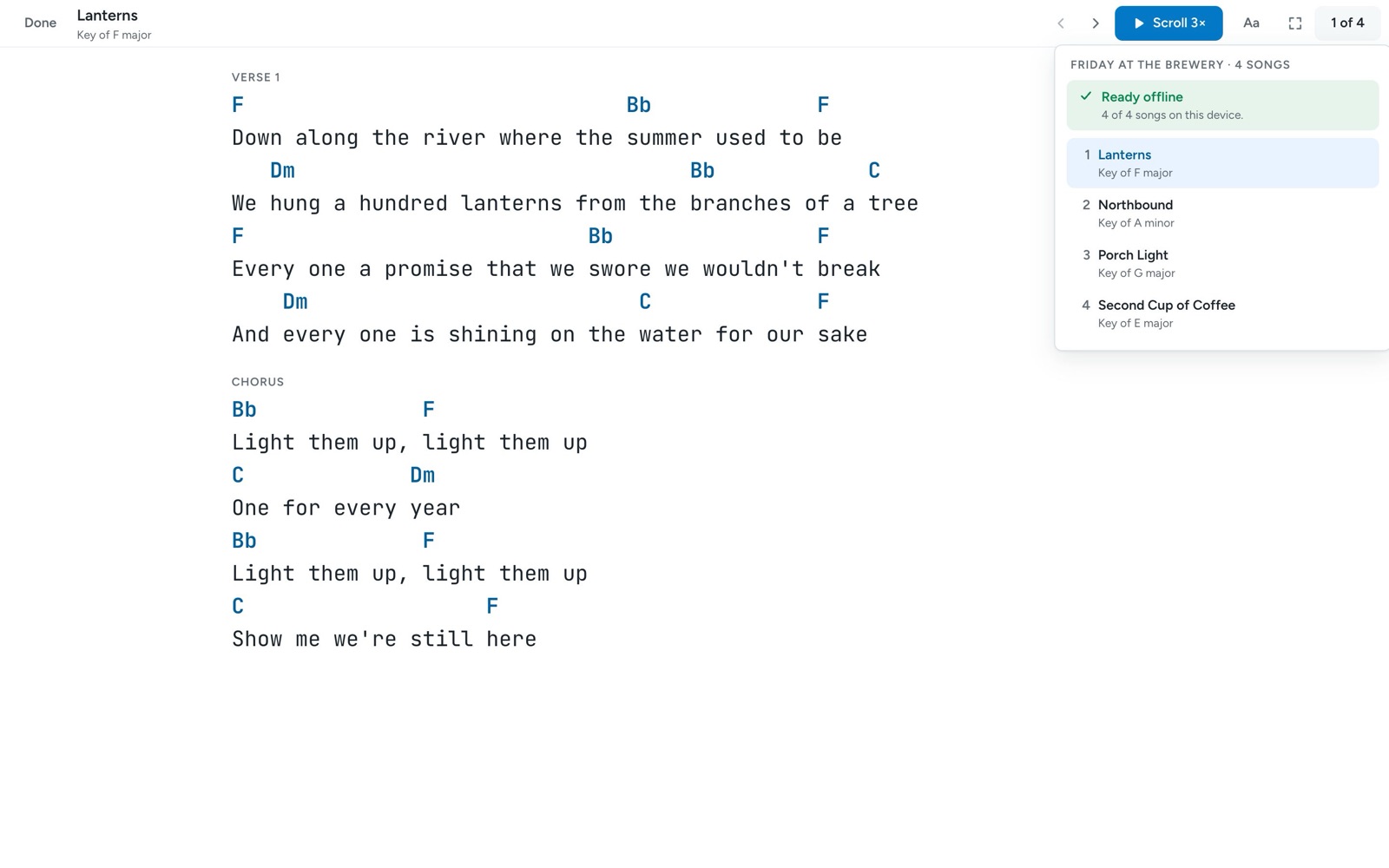
When you open a set, Songcraft saves its songs on your device. The set list shows Ready offline once they're all there, and if your connection drops at the venue, the set keeps playing.
Share a set with your band
Share the collection, and everyone you add can open the set in Perform, play it offline, and see your keys, capos, and notes. Your Pro covers them, so they don't need their own. See Share a collection with your band.
Tips
Press Enter to start scrolling and an arrow key or pedal to turn the page. Full screen hides everything but the song, and Perform keeps your screen awake where the browser allows it (the display settings tell you whether it can). To print a song or save it as a PDF, see Print chord charts and download PDFs.